AUTHOR’S NOTE: We’ve skipped Version 11 which can sometimes happen—we promise you haven’t missed anything!
🗺️ Introducing: Share Background Maps
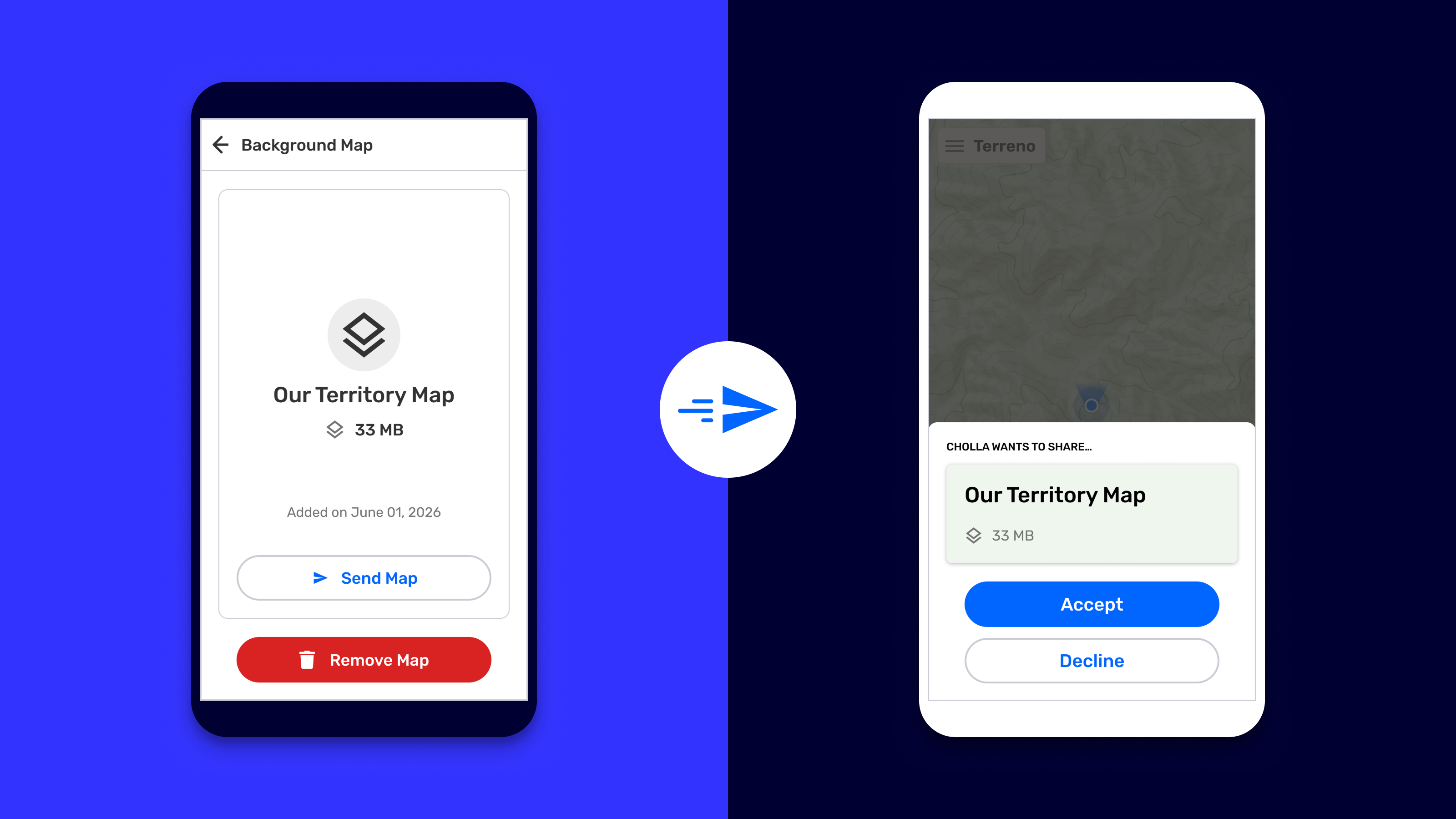
With CoMapeo Mobile v12, mobile devices using custom background maps can now share them with any other mobile devices also using this version of CoMapeo.
After a device uploads a custom background map, an info card appears on the Background Maps screen that includes a “Send Map” button. Tap this button and then select a device on the same Wi-Fi router to send the map over to the selected device. That device can then decide to either accept or decline the shared background map.
If no custom background maps have been uploaded, then the “Send Map” button is not available. Either upload a custom background map or have one sent to you from someone using CoMapeo Mobile v12.
🏁 Now Available: Early Access Mode
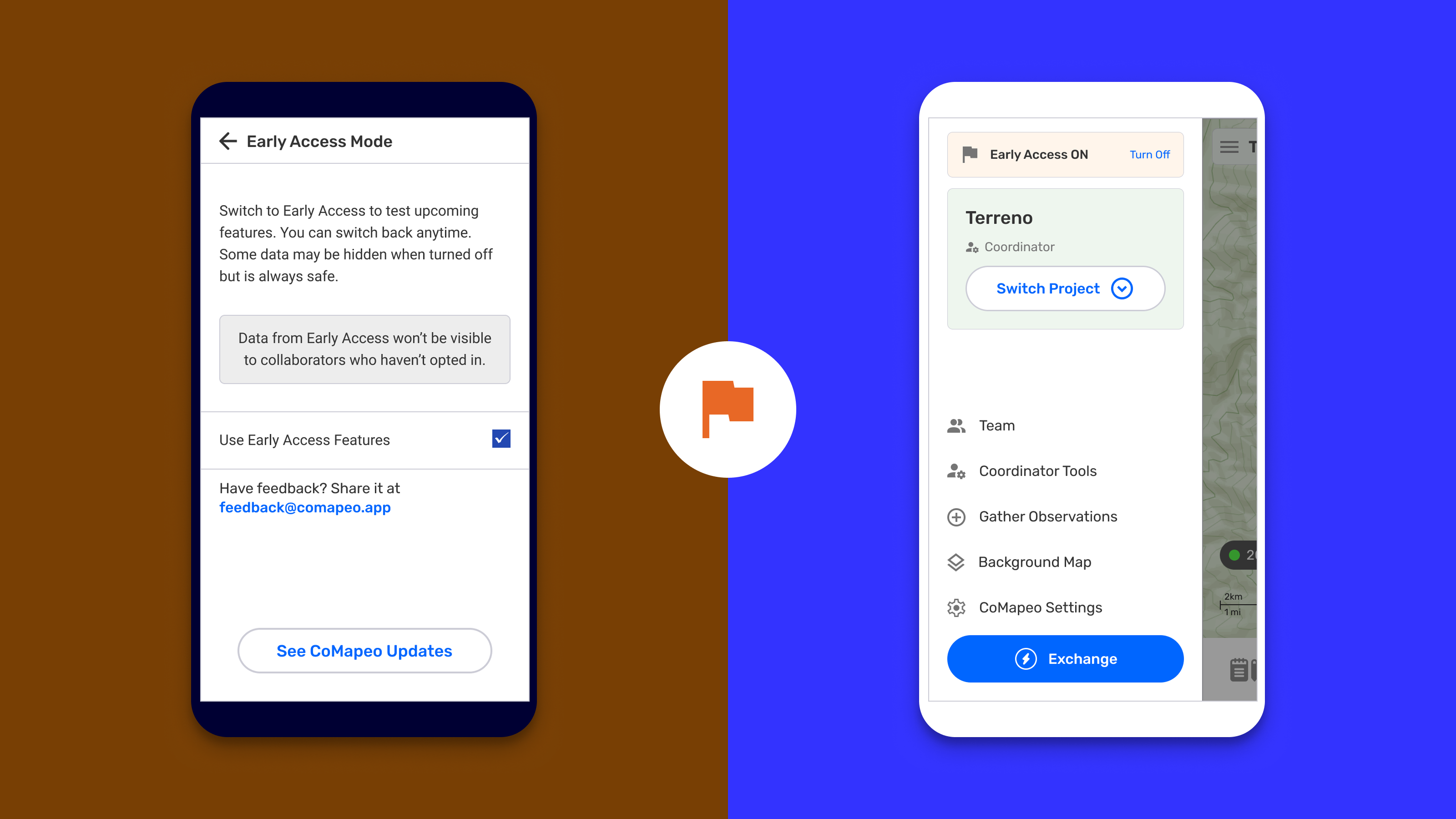
We are excited to announce that Early Access Mode for CoMapeo Mobile has arrived! As described in this post, Early Access Mode is an opt-in CoMapeo setting. Early Access Mode is for those who want access to new features without waiting for the next release of CoMapeo. Read the blog post to learn more about why we built this feature and how it works.
What’s in Early Access Mode now?
Filter Down Observations to Just You.
When in Early Access Mode, people will see a new segmented button UI on the Observations List screen. A person can choose between “All” (which is the default state) or “Just You” which narrows down the Observations List to all observations and tracks created using this device.
✅ Additional Updates
📸 Photo Capture Improvements
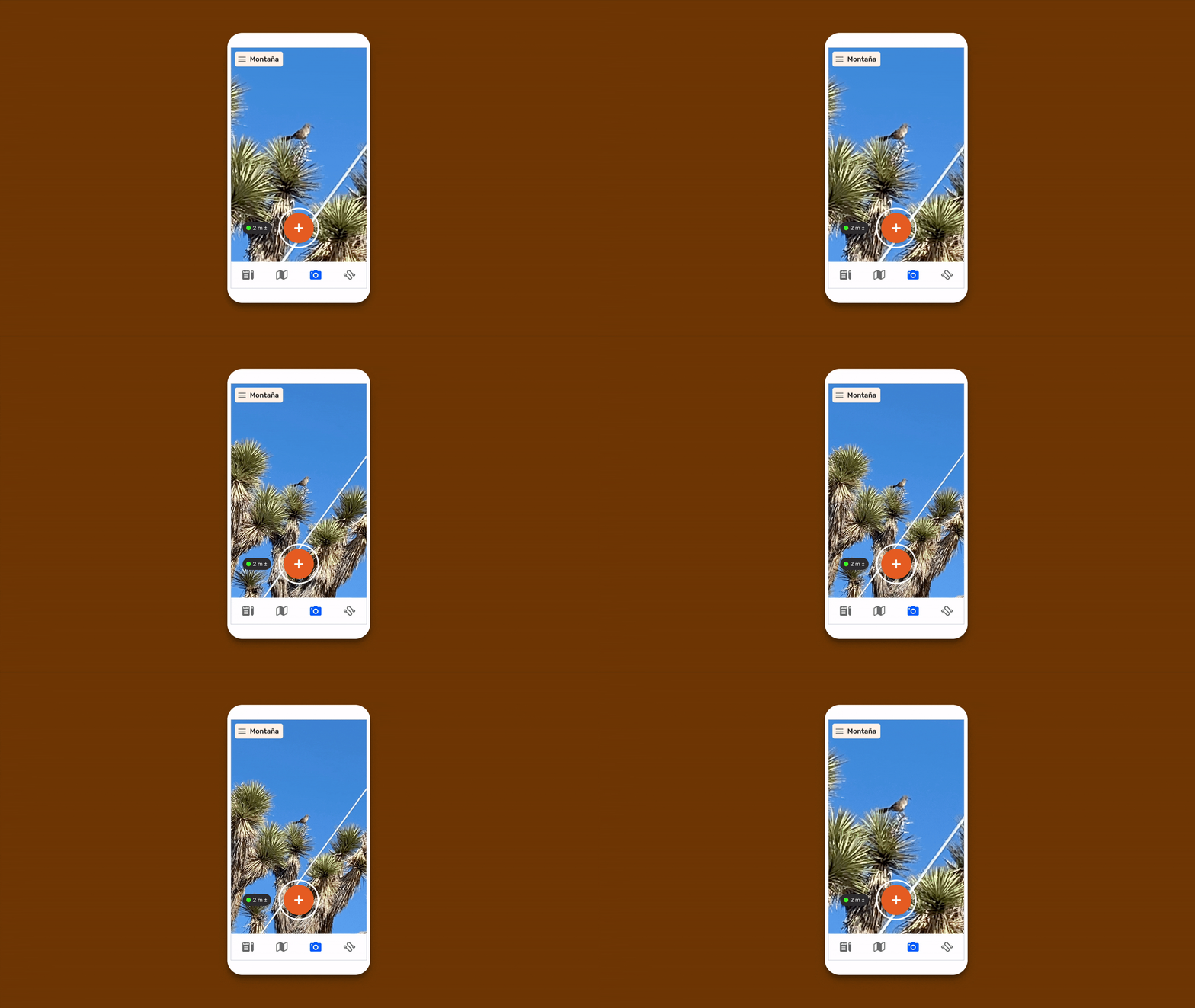
We’ve made the first set of improvements to capturing photos to CoMapeo.
- When in the Camera view, GPS accuracy is now visible
- Also, people can now pinch to zoom when in Camera mode
⚙️ Additions to CoMapeo Settings
In addition to an updated UI, people can now switch between metric and imperial units as needed—metric is the default state.
- Updated CoMapeo Settings with new Unit Systems option.
🔧 Additional Fixes
- “Exchange Everything” is now the default when using Exchange. This makes it easier to exchange observations and tracks. To switch back to “Exchange Preview”, simply tap on “Change Settings” to make the adjustment.
- If using a Passcode, file uploads now work without a problem. Feel free to easily upload map files or categories with success.
❌ Known Issues in Version 12
Issues when Getting an Error while Joining a Project
Sometimes after setting up CoMapeo for the first time, a device might receive an error while joining a project, especially if on the “Join Project” screen during onboarding. Afterwards, the device will end up with two Mapping on Your Own projects (device projects).
🔧 Troubleshoot: Avoid accepting invite while on the “Join Project” screen. Simply finish the onboarding before accepting any project invites.
Issues when Removing a Device from a Project
Sometimes when a device is removed and re-invited to a project multiple times, it could experience errors that prevent it from using CoMapeo completely. Sometimes after leaving and rejoining more than once an error will appear displaying that something went wrong and render CoMapeo not useable anymore.
In addition to that, sometimes a device that has been re-invited to a project will see observations previously gathered in the project before ever Exchanging. This is expected because the re-joining device will regain access to observations exchanged before leaving or being removed from that project.
🔧 Troubleshoot: Avoid leaving or removing a device from a project and having it re-join that same project more than once.
🚀 What’s Next
Coming Soon: Invite Links!
We are working on more ways to help coordinators invite devices to their projects. With Invite Links, coordinators will be able to generate unique expiring links that make it easy for multiple devices to securely request to a join projects. Then by using internet connectivity, coordinators can accept those requests safely and easily.
🫱🏽🫲🏾 Stay tuned for more CoMapeo updates soon!
Email us at help@comapeo.app / ayuda@comapeo.app
You can also find us on Discord!
You can download and read more about CoMapeo on comapeo.app